Lagvolt on PS5, Xbox and Switch.
Three ways to connect: share your PC's connection, run it on your router, or use Smart DNS.
The methods compared
| Method | PC needed | Game traffic via Lagvolt | Best for |
|---|---|---|---|
| Cable: how to set it upfrom your PC | PC neededYes, with a free Ethernet port | Via LagvoltYesThe cable adds under 1 ms | Best forA console near your PC |
| Hotspot: how to set it upfrom your PC | PC neededYes, with Wi-Fi | Via LagvoltYesWi-Fi adds 2 to 5 ms | Best forNo cable to the console |
| Router: how to set it upWireGuard | PC neededOnly to set up | Via LagvoltYes | Best forPlaying with your PC off |
| Smart DNS: how to set it uptwo DNS addresses | PC neededOnly to set up | Via LagvoltNoGame traffic stays direct | Best forPicking your matchmaking region |
Every method is set up in the Lagvolt app on a 64-bit Windows 10 or 11 PC.
Router
WireGuard on your router. Your PC can be off.
- 1In Lagvolt, pick your server region on Connect.
- 2Open Console, choose Router, and copy the WireGuard config or download the
.conffile. It holds your keys, so keep it private. - 3Load it on your router and apply it to your console only.
- 4On the console, run a connection test:
- PS5
- Settings then Network then Connection Status then Test Internet Connection
- Xbox
- Settings then General then Network settings then Test network connection
- Switch
- System Settings then Internet then Test Connection
One config is for one server region. For another region, make a new one. A router counts as one of your 10 devices.
Where the config goes
| Router | Open | Then |
|---|---|---|
| GL.iNet | OpenAdmin panel (192.168.8.1): VPN then WireGuard Client | ThenChoose Add manually and paste the config. Under VPN policies, apply it to your console only. |
| ASUS | Openrouter.asus.com: VPN then VPN Fusion | ThenAdd a WireGuard profile and import the .conf file. Apply it to your console only. |
| OpenWrt | OpenLuCI: Network then Interfaces then Add new interface | ThenPick WireGuard VPN and load the config. Add a policy rule so only your console uses the tunnel. |
Smart DNS
Can move matchmaking for supported games to the region you pick. Game traffic still goes direct.
For supported games, Smart DNS sends online services like sign-in and matchmaking through a relay in the region you pick. Game traffic still goes straight to the game server, so your ping stays the same. The PC is only needed to set it up: the app authorizes your home IP, then the PC can be off.
Smart DNS doesn't work with every game. Email [email protected] to ask about yours.
- 1In Lagvolt, open Console, choose Smart DNS and pick the region you play on.
- 2On the console, open DNS settings and choose Manual:
- PS5
- Settings then Network then Settings then Set Up Internet Connection, pick your network, then Advanced Settings then DNS Settings
- Xbox
- Settings then General then Network settings then Advanced settings then DNS settings
- Switch
- System Settings then Internet then Internet Settings, pick your network, then Change Settings then DNS Settings
- 3Enter the Primary and Secondary DNS the app shows.
- 4Press the switch in the app to authorize your home IP.
- 5Restart the console's connection, then launch your game.
- 6To stop, set DNS back to Automatic.
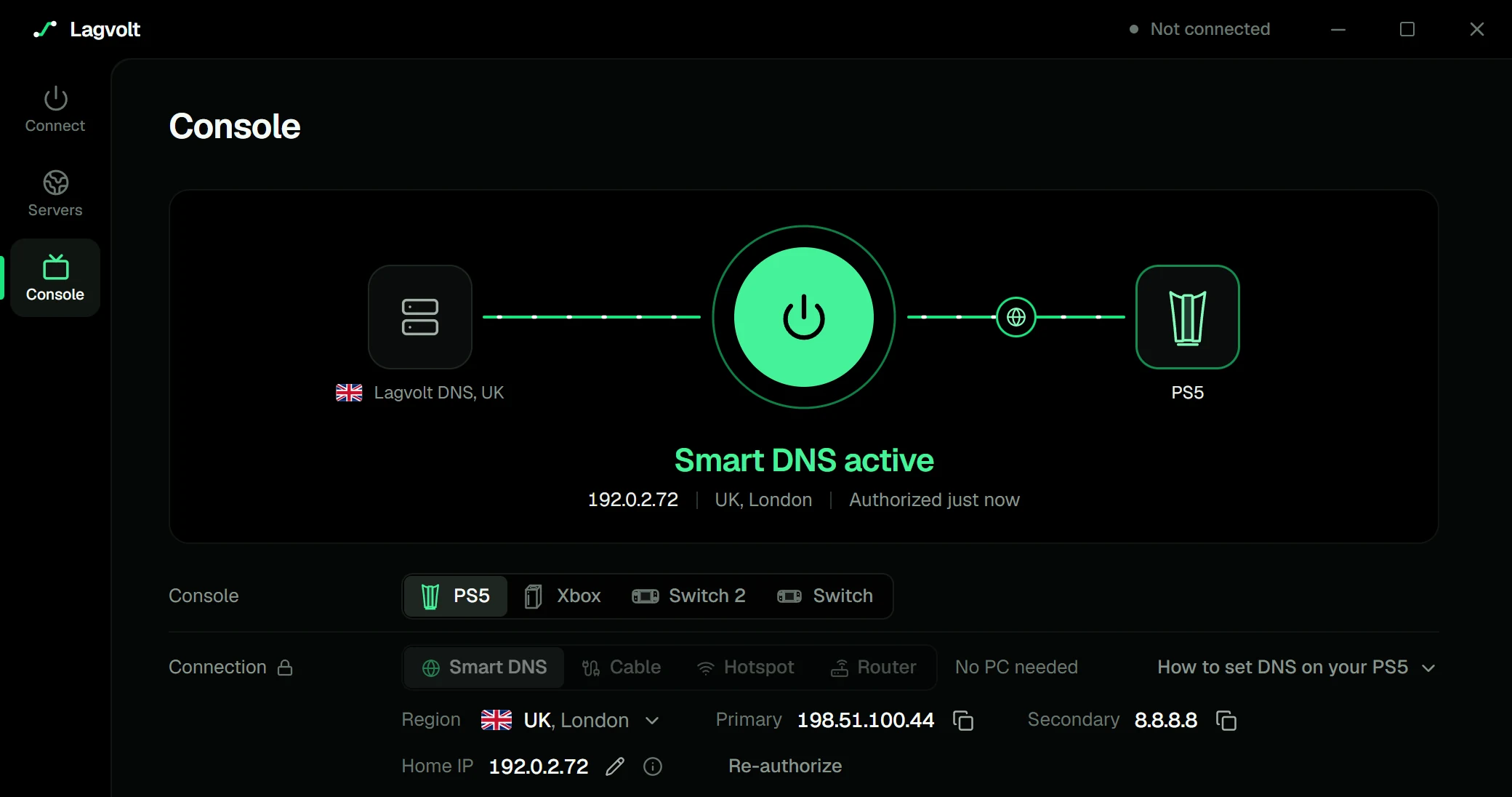
The app on demo data. Your home IP can change: if Smart DNS stops working, re-authorize in the app.
Open NAT
Open NAT for consoles isn't available yet.
NAT types
- Open
- Host lobbies and join party chat with anyone.
- Moderate
- Join most lobbies. Some players can't connect to you, and hosting may fail.
- Strict
- Play only with players who have Open NAT. Hosting and party chat usually fail.
Lagvolt can't forward ports to a console yet. Smart DNS doesn't change NAT.
Supported consoles
| Console | Models | Cable port |
|---|---|---|
| PlayStation 5 | ModelsOriginal, Slim and Pro | Cable portLAN port on the back |
| Xbox Series X|S | ModelsSeries X and Series S | Cable portNetwork port on the back |
| Nintendo Switch 2 | ModelsDocked or handheld | Cable portLAN port on the dock. Handheld mode is Wi-Fi only. |
| Nintendo Switch | ModelsOriginal, OLED and Lite | Cable portLAN port on the OLED dock. Older docks need a USB LAN adapter. Switch Lite is Wi-Fi only. |
Questions
Does Smart DNS send game traffic through Lagvolt?
No. For supported games, Smart DNS sends online services like sign-in and matchmaking through a relay in the region you pick, which can change where you get matched. Your game traffic still goes straight to the game server, so it sees your home IP address. To send a console's game traffic through Lagvolt, share your PC's connection or use a router.
Does my PC need to stay on?
For cable and hotspot, yes: the console plays on the PC's Lagvolt connection. For a router or Smart DNS, you need the Lagvolt app on a Windows PC only to set up, and then the PC can be off. If your home IP changes, re-authorize Smart DNS in the app.
Which routers work?
A router with a WireGuard client that can load a config file. The app has steps for GL.iNet, ASUS (VPN Fusion) and OpenWrt. Apply the config to your console only, so the rest of your home stays on its normal connection.
Can I get Open NAT on my console?
Not yet. Lagvolt can't forward ports to a console yet, so it can't give a console Open NAT. Smart DNS doesn't change NAT.
Does a console count as one of my devices?
No. Devices are the PCs and routers on your account, up to 10. A console shared from your PC or set up with Smart DNS isn't one. A router is.
Do consoles cost extra?
No. Sharing, router setup and Smart DNS are part of Pro ($6.99 a month or $49.99 a year) and of the 7-day free trial.
Try it with your console.
7 days of Pro, no card needed.